
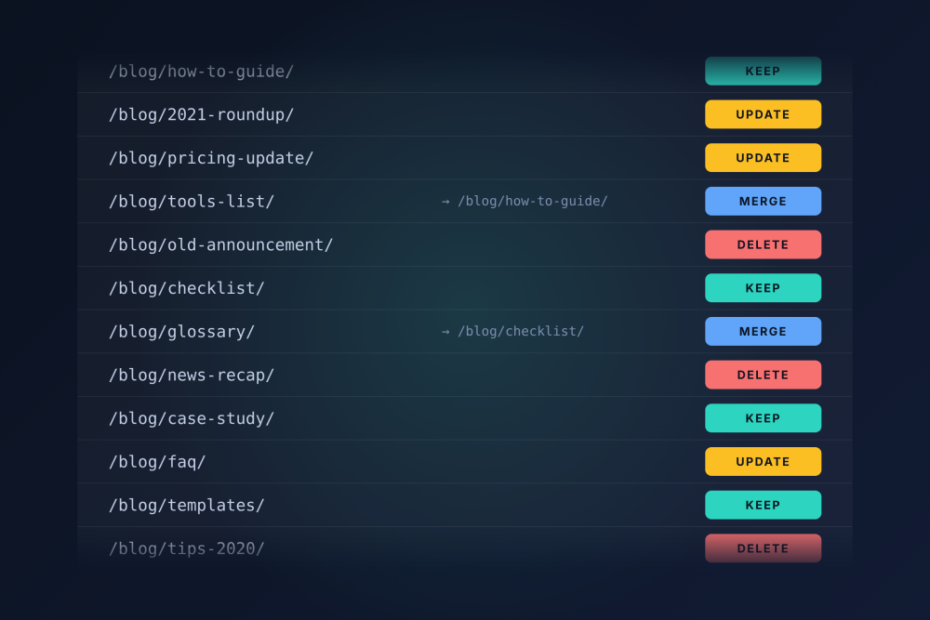
By the end of an SEO content audit, you hold one spreadsheet in which every URL in scope carries a decision: keep, update, merge or delete. This guide takes you through eleven steps to get there, from setting scope to tracking results. A 100-post blog fits in a few working days, while a site with thousands of URLs takes weeks.
Key Takeaways
- A content audit ends in one action per URL, so a spreadsheet of metrics with no decisions is an inventory, not an audit.
- Crawl data, Search Console, GA4 and a spreadsheet cover the whole process; paid tools only speed it up.
- Comparing two equal periods finds decaying pages, and reading impressions beside position tells you whether the cause is content or a weak snippet.
- Stale facts and cross-page contradictions cost citations as well as trust, and a claim-level check finds them faster than rereading.
- Merge and delete before you refresh, because redirects change which URLs exist.
- Judge each batch only after Google has recrawled the changed pages.
What is an SEO content audit
An SEO content audit is a page-by-page review of the content on your site that ends in a keep, update, merge or delete decision for every URL in scope. It combines crawl data, search performance, a check of what each page says, and a written reason for each decision. You run it in eleven steps, in the order below.
A technical SEO audit examines how the site is built: crawlability, rendering, speed, redirects, structured data. A content audit examines what the pages say and whether they earn traffic. A content inventory is only the list of URLs and their attributes, which is Step 2 of this process and the raw material for the rest.
How to Run an SEO Content Audit?
Here’s the list of eleven steps you need to go through when conducting a comprehensive content audit for SEO:
- Set the audit goal and scope.
- Crawl the site to build a content inventory.
- Pull Search Console and GA4 data per URL.
- Find decaying pages by comparing two periods.
- Find pages cannibalizing the same query.
- Check each page against its search intent.
- Check claims for stale facts and contradictions.
- Prioritize fixes by impact and effort.
- Merge, redirect or remove pages.
- Refresh pages and track the results.
The tools you need are a crawler (Screaming Frog SEO Spider, Ahrefs Webmaster Tools or Semrush Site Audit), Google Search Console, GA4 and a spreadsheet such as Google Sheets. For the accuracy check in Step 7 you can add a claim checker. We are building one, Assertio, so weigh that when you read our advice on it.
Step 1: Set the audit goal and scope
Once you know the audit produces a decision per URL, the goal you write down decides which data you pull and which URLs get a row. Pick one metric to move: organic clicks, conversions, indexed page count or citations in AI answers. A goal that tries to move all four produces a decision sheet that contradicts itself.
Each goal changes the audit’s emphasis. Recovering lost traffic puts Step 4 first. Lifting conversions makes the GA4 conversion column the main filter. Cutting index bloat leans on the crawl and on Search Console’s indexing data. Winning AI citations puts weight on Steps 6 and 7, because answer engines quote pages that state a direct, consistent answer.
Audit one section instead of the whole site when the goal is tied to it, such as a blog that lost clicks while product pages held steady. A section audit also suits a first attempt, because you learn the process on a few hundred URLs rather than discovering its problems on ten thousand.
Scope sets duration through manual review time. At five minutes per page, a 100-post blog takes about eight hours of reading plus setup. A site of several thousand URLs cannot be read page by page, so you review only priority pages by hand and let rules in the spreadsheet (zero impressions, no clicks in twelve months) classify the rest.
Step 2: Crawl the site to build a content inventory
The scope from Step 1 tells the crawler where to start, and every later step adds columns to the inventory this crawl produces. Start the crawl at the folder or subdomain you chose and let it follow internal links.
Screaming Frog SEO Spider is the standard desktop crawler, and its free version crawls up to 500 URLs, which covers a 100-post blog or one site section. Ahrefs Webmaster Tools Site Audit is free for sites you verify as yours 5,000 crawl credits per verified project per month (as of October 2026). Semrush Site Audit limits crawled pages by plan, and the free plan allows 100 pages per month. For larger sites, you need Screaming Frog’s paid license or a cloud crawler.
Export these fields per URL, because each feeds a later step:
- Title and meta description, for the snippet checks in Step 4 and the refresh in Step 11.
- Word count, to spot thin pages in Step 8.
- Status code and canonical, for the indexing checks in Step 6.
- Internal link count, which supports the priority scoring in Step 9.
A crawler only finds what links lead to, so compare its URL list against the XML sitemap. Pages in the sitemap but missing from the crawl are orphans with no internal links. Pages in the crawl but missing from the sitemap are being discovered by accident. If the content appears only after JavaScript runs, enable JavaScript rendering in the crawl settings, or the word counts will be wrong.
Step 3: Pull Search Console and GA4 data per URL
The inventory now has one row per URL, so performance data can be joined to it by URL. Each source answers a question the other cannot. Search Console shows whether people find the page in search. GA4 shows what they do after they land.
Search Console clicks, impressions and queries
Open the Performance report in Search Console, set the date range fixed in Step 1, and switch to the Pages tab for clicks, impressions, click-through rate and average position per URL. Selecting a page filters the Queries tab to the searches that page ranks for, which gives you its top query. The interface exports only 1,000 rows, so you will hit that limit on a large site.
To get past the limit, pull the data through the Search Console API, which lets you request page and query together in bulk. Looker Studio’s Search Console connector also works, as does the BigQuery bulk export, which stores data from the day you switch it on. Search Console keeps only 16 months of history, so export now whatever you may want later.
GA4 engagement and conversions per landing page
In GA4, the Landing page report under the engagement reports gives sessions, engagement time and key events per entry URL. Filter it to organic search traffic so the numbers match what Search Console describes. Add the conversion column for your goal event.
GA4 landing-page sessions will not match Search Console clicks. A click is counted when a searcher selects your result. A session requires the GA4 tag to load, which cookie consent refusals and ad blockers prevent. Use Search Console for demand and ranking decisions, and GA4 for engagement and conversion decisions.
Before joining the data, normalize URLs: trailing slashes, tracking parameters, and http versus https will all break a lookup. Flag any URL with zero impressions across the whole range, since Google is showing it to nobody.
Step 4: Find decaying pages by comparing two periods
With performance data attached, the same export for two periods shows which pages are declining, which a single snapshot hides. Export clicks, impressions and position for two periods of equal length, then add a change column for each metric.
Pick the comparison to match the page type. Year over year removes seasonality, so a tax guide that always drops in summer is not flagged. Previous period suits evergreen content and shows recent drops faster. Search Console’s 16-month limit means year over year works only for the last four months.
Read impressions and position together to find the cause. If clicks fall while impressions hold steady, searchers still see the page but pick something else, which points to a weak title or snippet. If impressions and position both drop, competing pages now outrank yours, which is content decay. A drop in impressions with stable position suggests falling search demand, which no edit will fix.
Review pages with the largest absolute loss of clicks first. A page that dropped from 40 clicks to 10 matters less than one that dropped from 900 to 600, even though the percentage is far worse.
Step 5: Find pages cannibalizing the same query
A decaying page often loses ground to another page on the same site, so the query data from Step 4 is checked for overlap next. In Search Console, filter the Performance report to one query, then open the Pages tab. If two or more of your URLs appear, you have a candidate.
Overlap alone is not cannibalization. Two pages ranking for the same query but serving different intents, such as a pricing page and a how-to guide, can both be correct. Real cannibalization shows in the pattern: Google alternates between two URLs for the query over the weeks, and neither ranks well. Check the position chart by page to see the alternation.
For each overlap, record the query, both URLs, their clicks and positions, and which page better matches the intent. Step 8 needs that record to choose between merging, differentiating the pages or redirecting one. Name a preferred URL now, because the page with more backlinks and a better match usually becomes the survivor.
To find overlaps at scale, export page and query pairs through the API and group by query in your spreadsheet. Any query with two or more URLs becomes a row for review.
Step 6: Check each page against its search intent
The numbers from Steps 3 to 5 show which pages underperform; reading each page against its main query shows why. Search the page’s main query, note the format of the top-ranking results, and compare. A 3,000-word guide ranking against calculators and product pages will not reach page one however well it is written, because Google has decided searchers want a tool.
Check the opening paragraph next. Answer engines and AI Overviews quote pages that state the answer early, under headings that name their subject. Add FAQ markup only where the page has real questions and answers, since marking up invented ones adds nothing a reader can use.
Some technical checks belong inside a content audit because they explain missing traffic. In Search Console’s URL Inspection tool, confirm each priority page is indexed, and look for a stray noindex tag or a canonical pointing to another URL. A page with either problem is invisible however good it is, and no content edit will help it.
Limit this manual work to priority pages: those with the largest click losses, the closest overlaps, or the highest business value.
Step 7: Check claims for stale facts and contradictions
Step 6 checks whether a page answers the right question; this step checks whether its answers are still correct and consistent across the site. When one page says a plan costs $49 and another says $59, a reader loses trust and an answer engine has two figures to choose between, which makes your site a less safe source to quote.
On a small site, do this by hand. Open each priority page and list its time-sensitive claims: prices, years, statistics, rules, product specifications. Check each against its original source, mark it current, outdated or unverified, and note the source. Then search your own site for the same figure or term to catch contradictions between pages, and log both URLs.
On a larger site, rereading becomes the bottleneck. A claim-level tool saves time here. Assertio, which I’m building, extracts assertions from your pages and flags those that contradict each other, so you review a list of conflicts instead of every paragraph. It does not replace the crawl or the traffic data from Steps 2 and 3, and it cannot tell you whether a page is worth keeping.
Assign every outdated or contradicted claim an owner and a fix in the decision sheet.
Step 8: Prioritize fixes by impact and effort
The decisions from Step 8 form a list of work with no order, and the order decides how soon any result shows. Score each action for impact and for effort, on a simple 1 to 3 scale each.
Impact is highest for pages ranking just below page one with high impressions, because a small gain in position converts impressions into clicks quickly. Pages that convert and pages with backlinks also score high, since losing or improving them moves the metric from Step 1. Effort is the hours the fix takes: a title rewrite is low, a merge of three posts is high.
Start with high-impact, low-effort items, then schedule the big merges. Group fixes into dated batches on a content update calendar, so each batch can be measured in Step 11.
To turn the decision sheet into an audit report a stakeholder will read, give every finding four fields: the finding, its severity, the fix and the owner. Put severity and fix side by side so a reader sees the problem and its remedy in one row. Add a summary at the top with counts per action.
Step 9: Merge, redirect or remove the cut pages
Once Step 8 has produced an audit report with each finding’s severity and fix side by side, start the first batch with merges and deletions, because they change which URLs exist and refreshes should target only the URLs that survive. Doing these first avoids polishing a page you then redirect.
To merge two thin posts, choose the stronger URL (more backlinks, better position) as the target. Move any useful content from the weaker page into it, rewrite so the result reads as one piece, then 301 redirect the weaker URL to the target. Move the content before the redirect goes live, or the weaker page’s traffic lands on a page that lacks what visitors came for.
To remove an old page from Google permanently, delete it so it returns 404 or 410 and drop it from the XML sitemap. For urgent removals, Search Console’s Removals tool hides a URL temporarily. A page that must stay live but out of search needs a noindex tag, and robots.txt must not block it, or Google never sees the tag.
Cleaning up indexed URLs can lift traffic across a whole site because crawl attention and internal links concentrate on fewer, stronger pages. Check for redirect chains afterward, and update internal links to final URLs.
Step 10: Refresh pages and track the results
With the URL set final after Step 10, refreshes go to pages that keep their address, and tracking starts from the date of each change. A refresh changes facts, intent match, title and meta description, and internal links from related pages. It does not mean adding words for their own sake.
Change the published date only when the content changed substantially, such as new data or a rewritten recommendation. A fixed typo does not justify it, and showing a new date on an unchanged page misleads readers.
Save a baseline of clicks, impressions and position for every changed URL before you edit, and log the change date beside it. After publishing, request indexing in URL Inspection so Google recrawls the page. A change cannot move rankings until Google has fetched the new version.
Wait at least four weeks before judging a change, longer for competitive queries, because rankings shift gradually and the recrawl itself takes days. Compare each batch against its own baseline, not the whole site, so you can see which kind of fix moved traffic and which did nothing.
Frequently asked questions about SEO content audits
The eleven steps are complete, so the short questions about repeating the audit, using ChatGPT and paying for one are answered together.
How often should you do an SEO content audit?
Run a full audit annually for most sites, and more often if you publish daily or run thousands of URLs. In between, a lighter quarterly review of the Step 4 decay report and the Step 5 overlap list catches problems early. Run an audit outside the schedule after a traffic drop, a site migration or a Google core update.
Can ChatGPT do an SEO content audit?
It can help with exports you give it. Paste in a spreadsheet of URLs and queries, and it can classify pages by intent, group overlapping topics or draft refresh notes. It cannot crawl your site, read live Search Console data or confirm that a fact is current. Check its suggestions against the crawl and performance data before anyone acts.
How much does an SEO content audit cost?
Price depends on URL count, depth of manual review, and whether fixes are included. A tool-generated report costs little or nothing but gives you flags rather than decisions. A manual audit costs more because someone reads the pages. Our free audit is the lighter option, and our full hands-on teardown costs $997, with findings graded by severity and fixes prioritized by impact.
Does deleting old content help SEO?
Yes, when the pages are thin, unvisited and unlinked, because the site then has fewer weak URLs competing for crawl attention. It hurts when the deleted pages were quietly earning links or long-tail traffic, which a low-clicks filter alone will not reveal. Check backlinks in your link tool before any deletion.
Are 301 redirects bad for SEO?
A 301 passes most of a page’s value to its destination, so it is the right choice whenever the URL has backlinks or traffic and a relevant replacement exists. Where no replacement exists, return 404 or 410, which tells Google the page is gone. Avoid redirecting unrelated pages to the home page, which search engines tend to treat as a soft 404.
Start your first content audit with one site section
With every step and the common questions covered, you need one concrete first action. Choose the section tied to your Step 1 goal that has the most traffic at stake, usually the blog or a product category, and build its inventory with a crawler this week.
If you want an outside review of what you find, send your findings through our free audit at lumkamishi.com.
SEO content audit checklist
Copy this list into your audit spreadsheet and tick each item as you finish it, or download the PDF version here.
Step 1: Set the audit goal and scope
- One written goal names the metric the audit should move.
- The URL scope is written down as a folder, subdomain or content type.
- The date ranges for every performance export are fixed before any data is pulled.
- A spreadsheet exists with one tab for the inventory and one for decisions.
Step 2: Crawl the site to build a content inventory
- Every indexable URL in scope has one row in the inventory.
- Each row records title, meta description, word count, status code, canonical and internal link count.
- Redirected, noindexed and error URLs are flagged in their own column.
- URLs found in the XML sitemap but missing from the crawl, or the reverse, are listed for review.
Step 3: Pull Search Console and GA4 data per URL
- Every inventory row has clicks, impressions, average position and top query from Search Console.
- Every inventory row has sessions, engagement time and conversions from GA4.
- URLs with zero impressions across the whole date range are flagged.
- URL formats are normalized so Search Console and GA4 rows match the crawl.
Step 4: Find decaying pages by comparing two periods
- Clicks and impressions are exported for two periods of equal length.
- Each URL has a change column for clicks, impressions and position.
- Pages losing clicks while impressions hold steady are marked as title or snippet problems.
- Pages losing both impressions and position are marked as content decay.
Step 5: Find pages cannibalizing the same query
- Every query with two or more ranking URLs is listed alongside those URLs.
- Each overlapping pair is marked either as cannibalization or as two pages serving different intents.
- One preferred URL is named for every cannibalized query.
Step 6: Check each page against its search intent
- Each priority page has its main query and the format of the top-ranking results recorded.
- Pages whose format does not match the ranking results are flagged, for example a long guide ranking against tools or calculators.
- Each priority page answers its main question in its opening paragraph.
- Each priority page is confirmed indexed in Search Console URL Inspection, with no stray noindex tag or canonical pointing elsewhere.
Step 7: Check claims for stale facts and contradictions
- Every priority page has its time-sensitive claims listed: prices, years, statistics, rules, product specifications.
- Each listed claim is marked current, outdated or unverified, with the source used to check it.
- Every claim that contradicts another page on the site is logged with both URLs.
- Every outdated or contradicted claim has an owner and a fix recorded in the decision sheet.
Step 8: Decide keep, update, merge or delete, then carry out the cuts
- Every URL in scope has exactly one action: keep, update, merge or delete.
- The reason for each decision is written in one cell next to it.
- Every merge names its target URL.
- Every delete records whether the URL has backlinks or traffic, which decides between a redirect and removal.
- The useful content of every merged page is moved into its target before the redirect goes live.
- Every removed URL with backlinks or traffic has a 301 redirect to the closest relevant page.
- Pages removed with no replacement return 404 or 410 and are dropped from the XML sitemap.
- No redirect points to another redirect.
- Internal links point to final URLs instead of redirected ones.
Step 9: Prioritize the updates by impact and effort
- Every update action has an impact score and an effort score.
- Pages ranking just below page one with high impressions are in the first batch.
- Fixes are grouped into dated batches on a content update calendar.
- The audit report lists each finding with its severity and its fix side by side.
Step 10: Refresh pages and track the results
- Each refreshed page has corrected facts, a direct answer in its opening and links from related pages.
- The date of every change is logged next to its URL.
- A baseline of clicks, impressions and position is saved for every changed URL.
- A review date is set to compare the changed URLs against their baseline.