
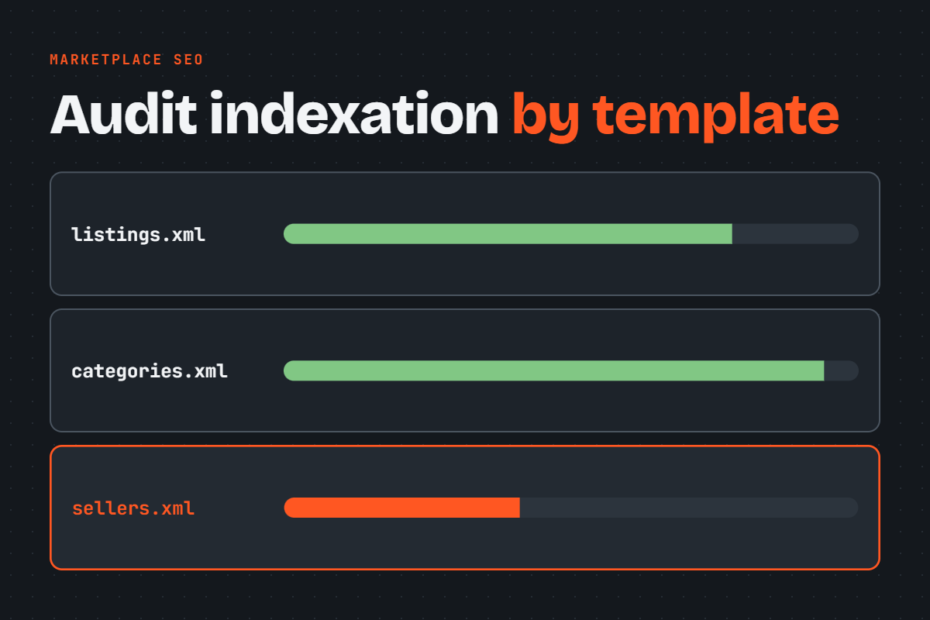
A marketplace indexation audit in Search Console produces one table: for each page template on your marketplace, how many URLs Google indexes, why it skips the rest, and which fix to ship first.
Key Takeaways
- A sitewide indexed count hides which template is losing pages, so you audit by template.
- One XML sitemap per template lets the Page indexing report show indexed and not-indexed counts for each.
- Exclusion reasons need sorting into intended and problem before any fix is assigned.
- Filter and sort URLs that Google has indexed come under control with a canonical, a noindex or a
robots.txtblock, and the right one depends on the URL. - A weekly recheck of indexed counts per template tells you whether each fix worked.
How do you run a marketplace indexation audit in Search Console?
The audit runs in eight steps, and each one narrows the question from “how many pages are indexed” to “which template loses pages and why”.
- Map every URL pattern to a template.
- Split your XML sitemaps by template.
- Read the Page indexing report per sitemap.
- Rank excluded reasons by template.
- Inspect sample URLs from each template.
- Find filter and sort URLs in the index.
- Check status codes on expired listings.
- Log fixes and recheck indexation weekly.
A sitewide count of indexed pages averages together templates that behave very differently, so a marketplace can show a steady 2 million indexed URLs while listings drop out and filter pages replace them. Auditing by template exposes that swap because the total never moves while the mix underneath it changes.
Step 1: Map every URL pattern to a template
The audit compares indexation by template, so every URL pattern needs a label before any report can be segmented. A marketplace typically has seven: listing, category, seller, search, filter, sort and expired. The table gives a default indexing decision for each, which you adjust to your own content.
| Template | Example URL pattern | Default decision |
|---|---|---|
| Listing | /listing/12345-title |
Index if content is unique |
| Category | /cars/sedans/ |
Index |
| Seller | /seller/dealer-name/ |
Index if profile has real content |
| Search | /search?q=blue+sedan |
Do not index |
| Filter | /cars/sedans/?color=red |
Index only with proven demand |
| Sort | /cars/sedans/?sort=price |
Do not index |
| Expired | /listing/12345-title (sold) |
Do not index |
The table shows that only three templates are indexable by default, which means the audit’s targets are those three, plus the filter pages that earn an exception.
Decide indexability by asking whether the page offers something a searcher cannot get elsewhere on your site and whether anyone searches for it. Write each pattern as a path prefix where one exists, such as /seller/. Where templates share a path and differ only by parameter, use a regex such as [?&]sort= so it matches sort URLs and nothing else. Estimate URL counts from your database or a crawl.
Step 2: Split your XML sitemaps by template
The Page indexing report filters by submitted sitemap, so each template from Step 1 needs its own sitemap before the report can be read by template. With one combined sitemap, the report returns a single blended number. With a sitemap per template, the sitemap dropdown becomes a template selector.
List the sitemaps in one sitemap index file and submit that file in the Sitemaps report. A template larger than the per-file limit (50,000 URLs) needs several files, so name them by template and number (listings-001.xml, listings-002.xml). The report filters by each child sitemap separately, so you can sum them.
Include only URLs the template map marks as indexable, because a sitemap entry tells Google you want the page indexed and distorts the ratio in Step 3 otherwise. Remove sold and redirected listings when they go offline. Expect a wait before the filter shows data for a new sitemap.
Step 3: Read the Page indexing report per sitemap
With a sitemap per template in place from Step 2, the Page indexing report can now show an indexed and not-indexed count for each template. Open Indexing, then Pages, and use the filter at the top to switch from “All known pages” to one submitted sitemap, so that the chart shows indexed and not-indexed URLs for that file alone.
Divide indexed URLs by submitted URLs to get the ratio for each template. Because no single benchmark applies to every marketplace, judge the ratio against the template’s value and its own trend. A category template at 60% indexed is a problem, while a listing template at 60% may be acceptable if the rest are near-duplicates you would not want ranked.
Submitted and indexed counts differ because a submitted URL is only a request. Google may canonicalize it to another URL, judge it thin, or not yet have crawled it. Record the reading date, since the report lags the live state and readings are easiest to compare when taken on the same weekday. Then rank templates by their not-indexed count.
Step 4: Rank excluded reasons by template
Step 3 shows how many pages each template loses, and the exclusion reasons explain why, which decides the fix. Scroll below the chart with the sitemap filter still on, and record the top three reasons for each template. The table translates the common ones for a marketplace.
| Reason in report | Meaning on a marketplace | Expected on | First fix |
|---|---|---|---|
| Crawled – currently not indexed | Google fetched the page and declined it | Never on listings | Improve unique content, prune duplicates |
| Discovered – currently not indexed | Google knows the URL but has not fetched it | Large new inventory | Add internal links, refresh sitemap |
| Duplicate, Google chose different canonical | Google overrides your canonical | Near-identical listings | Differentiate pages or fix canonicals |
| Alternate page with proper canonical tag | Page defers to its canonical | Filter and sort pages | None |
| Excluded by ‘noindex’ tag | Your tag removed the page | Search, sort, expired | None if intended |
Blocked by robots.txt |
Googlebot may not fetch it | Search and sort pages | None if intended |
| Soft 404 | Page returns 200 but looks empty | Expired listings | Return a real 404 or 410 |
Mark each reason as intended or a problem, because the same reason can mean opposite things on different templates. Thousands of “Alternate page with proper canonical tag” URLs on filter pages mean the canonicals work, but the same reason on listing pages means a template bug is pointing listings at the wrong URL.
Prioritize by multiplying the number of URLs by the template’s value, which is why ten thousand missing category pages outrank a million missing sort URLs. Export example URLs for each problem reason, since Step 5 inspects them.
Step 5: Inspect sample URLs from each template
Step 4 names the exclusion reason per template, and inspecting example URLs confirms the cause before anyone changes the template. Paste an exported URL into URL Inspection and compare the canonical you declared with the Google-selected canonical. A mismatch on listings means Google treats them as copies of another page, which no sitemap change will fix.
Open the rendered HTML through the crawled page view. If listing titles, prices or descriptions load only after JavaScript runs and the rendered HTML is empty, Google indexes a shell. Check the last crawl date too, because a listing last crawled months ago points to a crawl scheduling issue rather than a quality verdict.
For batches, call the URL Inspection API and write the results to your audit sheet. Its daily quota is limited per property, so sample a few hundred URLs per template instead of inspecting all of them.
A live test fetches the page now, while the default result shows the version Google indexed. When they differ, your fix is visible to Googlebot but not yet processed. When they match and the problem persists, the fix did not address the cause.
Step 6: Find filter and sort URLs in the index
Filter and sort URLs are the template most likely to inflate the index, and Step 5 has shown how Google treats their canonicals. To find indexed ones, open the Performance report, add a Page filter using a regex for your parameters (for example ?&=), and read the pages that earn impressions. A URL with impressions is indexed, though a URL with none may still be indexed, so spot-check silent ones in URL Inspection. Count them per parameter.
Choose the control by what the URL needs. Use a canonical when a filtered page duplicates its parent category and you want link signals consolidated. Use noindex when a page must leave the index but stay crawlable. Use a robots.txt block only for endless combinations that waste crawling, and only after they have dropped out, because Google cannot read a noindex or canonical on a page it is blocked from fetching.
Some filter combinations deserve promotion into proper category pages. Check query data for combinations such as brand plus body type, and give those a clean URL, a unique heading and a sitemap entry. Finally, locate internal links pointing to non-indexable filter URLs, since each link invites Googlebot to crawl them.
Step 7: Check status codes on expired listings
Expired listings are the last template that can wrongly stay indexed, and their fix depends on the status code the server returns. A sold or deleted listing should return 404 or 410 when no replacement exists, or a 301 to its parent category when a close equivalent does, because a 200 with an empty page gives Google no clear signal.
A soft 404 is a page that returns 200 while showing “this item is no longer available”. Google classifies many of these as soft 404s and excludes them, but the 200 status leaves recrawl timing to chance, so the URLs linger in reports and sometimes in results. Record the soft 404 count for the listing template and compare it with your daily expiry volume.
Remove expired URLs from sitemaps the same day they expire. Because the Removals tool hides a URL from results temporarily and does not delete it from the index, reserve it for urgent cases such as legally sensitive listings, and fix the status code in the same release.
Step 8: Log fixes and recheck indexation weekly
Steps 3 to 7 produce a list of fixes per template, and a weekly recheck shows whether each fix changes the indexed count. The audit sheet needs these columns: template, submitted count, indexed count, ratio, top exclusion reason, fix, owner and date shipped. Take the reading on the same weekday each week.
Expect indexed counts to move gradually after a fix. Define a drop threshold per template, such as a set percentage fall week over week, and require a review whenever a template crosses it.
Open Crawl stats under Settings each week. Check total requests, the response code breakdown and the file types fetched. If requests to listing paths fall while requests to parameter URLs rise, Googlebot is spending its visits on templates you do not want indexed. A spike in 404 responses after a release usually traces to expiry logic.
Frequently asked questions
The eight steps cover the audit itself, leaving short questions about timing, scope and tools that do not need a section each.
How long does Google take to index new listings?
Google publishes no fixed figure. Indexing time for a new listing varies with internal links to it, how fresh the template sitemap is, and how Google rates the template’s quality. Listings linked from a crawled category page and present in an updated sitemap usually appear sooner than orphaned ones.
How do I get Google to recrawl a fixed template?
Resubmit the template sitemap with updated lastmod dates, then click Validate Fix on the issue in the Page indexing report. Use Request Indexing only for a few key URLs, since the tool is meant for individual pages and will not process thousands of listings.
Should every marketplace listing be indexed?
No. Keep thin, duplicate, out-of-stock and near-identical seller listings out of the index. Submitting them lowers the template’s indexed-to-submitted ratio and spreads crawling across pages that earn no clicks, which slows discovery of listings that do.
Is Search Console enough for an indexation audit?
Search Console reports on URLs Google already knows about. A crawler such as Screaming Frog, or server log analysis, adds orphan pages that no internal link reaches and URLs Googlebot has never requested. Use Search Console first, then add a crawler when counts do not reconcile with your database.
Start with your highest-volume listing template
With the steps and questions covered, begin with the template holding the most not-indexed URLs, because fixing its dominant exclusion reason moves the sitewide indexed count further than any other single change. Small templates may have worse ratios, but their absolute losses are small.
This week, build the template map from Step 1, then split that one template’s sitemap and read its Page indexing report.
Also read: